Meta attribution windows: how to compare periods without fooling yourself
On Jan 12, 2026 the Meta API stopped returning the 7-day and 28-day view windows. See what changed and how to compare periods correctly.
Contents
An attribution window is the period in which Meta can credit an action (a purchase, a lead) to an ad after someone clicks or views it. Comparing periods only makes sense when the window and the counting rule are the same on both sides. Since January 12, 2026, the Meta Insights API no longer returns data for the 7d_view and 28d_view windows, so comparing December with February without checking this can show a drop that never happened.
What a window is and why it changes the number
Meta's documentation describes the attribution window as the filter that combines a period (for example, 7 days) and an interaction type (for example, click) to decide which actions go into the report. In 7d_click, an action counts if it happened up to 7 days after a click. In 1d_view, it counts if it happened up to 1 day after the person viewed the ad.
This means the same ad, on the same day, has more than one purchase number: one for each window. None of them is "the right one". Each answers a different question, and the mistake starts when a report mixes the answers.
What changed in January 2026
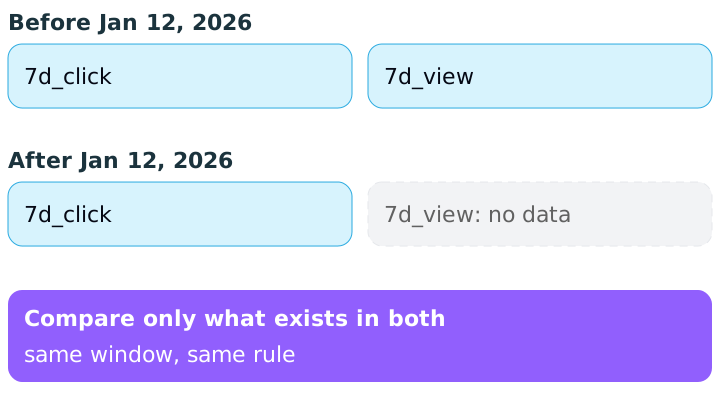
The Marketing API changelog, published on October 13, 2025, announced that the change applies to all API versions on January 12, 2026: data for the 7-day view-through (7d_view) and 28-day view-through (28d_view) windows is no longer available, and the query returns no data.
The practical point: a dashboard that adds up several windows, or that shows the 7-day view window, now has one piece less. What changed is what the API delivers, not the performance of the ads.
The same notice brought history limits that matter for year-over-year comparison:
- All breakdowns of unique-count fields, such as
unique_actions, are limited to 13 months. Queries with an older start date return no data. - Hourly breakdowns are also limited to 13 months, for all fields.
- Frequency breakdowns are limited to 6 months.
In addition, an earlier rule has applied since June 10, 2025: reach is no longer returned for breakdown queries whose start date is more than 13 months old.
A hypothetical example of a false drop
The numbers below are made up to illustrate the math. An e-commerce account records, in December, 60 purchases in the 7d_click window and 20 in 7d_view. In February, with the same operation, it records 62 in 7d_click, and 7d_view no longer exists.
7d_click- December
- 60
- February
- 62
7d_view- December
- 20
- February
- no data
Sum of both
- December
- 80
- February
- 62
| Window | December | February |
|---|---|---|
7d_click | 60 | 62 |
7d_view | 20 | no data |
| Sum of both | 80 | 62 |
Whoever compares the sum sees 80 → 62, a drop of 22.5% (18 ÷ 80). Whoever compares the same window sees 60 → 62, a rise of about 3.3% (2 ÷ 60). The ad account did not get worse: the report lost a column.
The rule is simple and holds for any configuration change: compare window with window. If a window stopped existing, the old period has to be recalculated using only the ones still available.
The window comes from the ad set
According to the Insights API limits and best practices page, since June 10, 2025 the use_unified_attribution_setting and action_report_time parameters are disregarded and API responses mimic Ads Manager:
- Attributed values follow the attribution setting of the ad set, similar to what
use_unified_attribution_setting=truedid. - On-ad (inline) actions are included in
1d_clickor1d_viewwindow data; the standaloneinlinewindow is no longer returned.
In practice, two ad sets in the same campaign can have different settings. If you add up ad set results without checking this, you are mixing windows. Before consolidating a campaign, check each ad set's setting.
An honest caveat: the same page also states that the API's default behavior differs from Ads Manager's default. Since the documentation describes both points, do not draw conclusions from the default. Request the windows you want and record them.
Request the window explicitly
The API accepts the action_attribution_windows parameter, which sets the period and interaction type used as a filter. The reference lists values such as 1d_click, 7d_click, 28d_click and 1d_view, among others. When querying, choose the windows and store the list used alongside the report. A report that does not state its window cannot be compared with anything.
There is a restriction that catches people who work with breakdowns: the documentation says metrics are unavailable when you try to aggregate across multiple attribution settings, and also with certain breakdowns (for off-Meta actions, such as region and DMA). The documentation itself indicates that querying with action_attribution_windows=1d_click,7d_click,1d_view,incrementality keeps the metrics available. If a total "vanished" after a breakdown, start here.
On and off Meta: the month boundary
The best practices page also says actions are now reported with action_report_time=mixed: actions on Meta (such as link clicks) use the impression time; actions off Meta (such as website purchases) use the conversion time.
A hypothetical example: someone sees and clicks the ad on December 30 and buys on January 3. The click and the spend stay in December; the purchase lands in January. That is why the cost per purchase of a closed month mixes spend from one period with purchases from another, and a month's close can be partial in the first days of the next. This is not an error: it is the dating rule. Just do not compare a partial close of one month with the full close of another.
How Relator helps
Relator connects the Meta ad account to the same workspace as Google Ads and GA4, so you see the platforms side by side in the client report. Which window to use, and noting the January change, remain your decisions and should be written in the report.
How to apply
- 1.Choose one main window for the client report (for example,
7d_click) and write it in the header. - 2.When querying the API, pass
action_attribution_windowswith the windows you want instead of trusting the default. - 3.Recalculate periods before 01/12/2026 without
7d_viewand28d_view, to compare with what exists today. - 4.Check the attribution setting of each ad set before adding up results.
- 5.Note in the report the date of the change (01/12/2026) and what changed, to explain the difference to the client.
- 6.Do not compare a partial month with a closed month: let the close mature for a few days.
- 7.For comparisons beyond 13 months with unique-count fields, keep your own monthly data instead of relying on the query.
Sources
All checked on October 11, 2026. Left out, because we could not read Meta's Help Center page as text: the list of windows available in Ads Manager, the default for new campaigns, and the difference between display options.
- Meta for Developers, Out-of-cycle changes 2025: end of the
7d_viewand28d_viewwindows on 01/12/2026 and the 13- and 6-month limits. - Meta for Developers, Insights API: Limits & Best Practices: ad set setting,
action_report_time=mixedand the default difference from Ads Manager. - Meta for Developers, Insights API: Breakdowns: metric restrictions and windows by breakdown.
- Meta for Developers, Ad Campaign Group Insights (reference): the
action_attribution_windowsparameter and its values.
This article is also available as Markdown, for agents and LLMs: view .md version