Thresholds and missing data in GA4: when numbers vanish
Data thresholds, sampling and the (other) row make GA4 numbers vanish or change. Learn to tell them apart and what to do, with official sources.
Contents
When a number vanishes or changes in GA4, the cause is almost always one of three: a data threshold (GA4 withholds rows to protect user identity), sampling (the report uses only part of the events) or the "(other)" row (rare values grouped together). Each has a different sign on screen and a different way out. Knowing which one is at work saves you from reworking filters for nothing, and from explaining to a client an "error" that does not exist.
Three different mechanisms, one similar symptom
For the analyst the symptom is the same: the number is not what you expected. But the three mechanisms have nothing else in common.
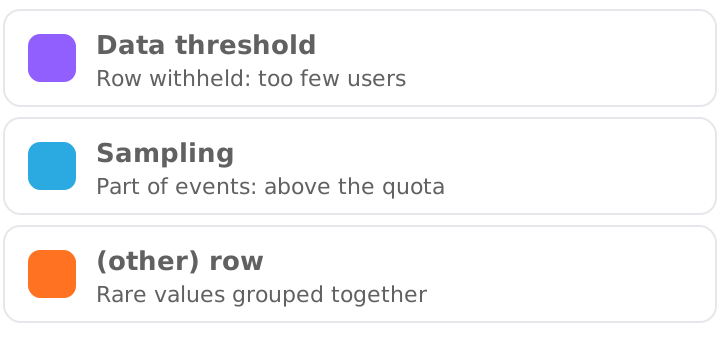
In a table, the difference is in what happens to the data:
Data threshold
- What happens
- Rows withheld because of few users
- Where you see it
- Threshold notice on report cards
- Main way out
- Widen the date range
Sampling
- What happens
- Estimate from part of the events
- Where you see it
- Quality icon with the percentage used
- Main way out
- Reduce the query's events or use 360
(other) row
- What happens
- Rare values grouped together
- Where you see it
- A row named "(other)"
- Main way out
- Fewer high-cardinality dimensions
| Mechanism | What happens | Where you see it | Main way out |
|---|---|---|---|
| Data threshold | Rows withheld because of few users | Threshold notice on report cards | Widen the date range |
| Sampling | Estimate from part of the events | Quality icon with the percentage used | Reduce the query's events or use 360 |
| (other) row | Rare values grouped together | A row named "(other)" | Fewer high-cardinality dimensions |
Data threshold: GA4 withholds rows to protect people
The Google Analytics Help explains that thresholds exist to stop anyone viewing a report from inferring the identity of users or sensitive information from signals such as demographics and interests. Thresholds are system-defined and cannot be adjusted. The page gives no minimum number of users, so any value quoted elsewhere as "the limit" does not come from the official documentation.
The Help describes two situations where data may be withheld:
- Demographic data. A report, exploration or API call that includes demographic data, or an audience defined by demographics, may have data withheld.
- Search queries. A row of search query information may be withheld when there are not enough total users.
When a threshold applies, the data quality indicator shows a message that GA4 applied thresholding to one or more cards in the report. That is the first place to look before assuming collection broke.
What lowers the chance of a threshold
The Help says you cannot adjust the threshold, but you can reduce the chance of it appearing. The documented action is to widen the date range: short ranges with few users or events are more likely to have data withheld, and a longer period may gather enough users.
In practice, this changes how you build reports for small clients. A daily report with age and gender crossed with a campaign is more likely to lose rows than the same report by month. If the client's question is about the audience profile, answer with the month or the quarter, not the day.
Why BigQuery shows different numbers
The Help also warns that GA4 does not export Google signals data to BigQuery, so event counts per user may differ between the two. That is not a defect in your report: they are different datasets. When comparing the two sources, record where each number came from.
Sampling: the report uses part of the events
The Help defines sampling as analyzing a subset of data to estimate results for a larger dataset, which lets you retrieve data faster with minimal impact on quality. It can occur in standard reports and explorations when the number of events used in the query exceeds the property's quota.
The same page gives the quota numbers:
- Standard properties: 10 million events per query.
- Google Analytics 360: up to 1 billion events, with an initial default of 100 million events per query.
When results are sampled, the data quality icon shows the percentage of data used. A larger sample generally means more accurate results. The page also notes that filtering a large dataset by country can cause sampling.
Unsampled data is available only in Google Analytics 360, according to the Help on explorations. On a standard property, the way out is to reduce the number of events in the query, for example with a shorter period.
Unique counts are estimates too
Even without sampling, the Help says reports use the HyperLogLog++ algorithm to estimate distinct counts such as users and sessions. The difference is usually under 1%, but it can be higher, especially when combining several metrics that use this algorithm.
A hypothetical example to give the scale: in a report with 10,000 users, 1% is 100 users. A difference of that order between two reports of the same property does not indicate a collection error. Much larger differences deserve investigation.
The "(other)" row: when the table has too many rows
The Help explains that the "(other)" row appears when a table goes over the row limit: GA4 shows the most common values of the dimension and condenses the less common ones into the "(other)" row.
The number of rows grows with cardinality, the number of values a dimension can take. In tables with several dimensions, the total rows can reach the product of each one's values. The Help's own example: device with 3 values combined with age with 6 values can produce up to 18 rows.
A hypothetical example with the same math: add city, with 40 values, and the table can reach 3 × 6 × 40 = 720 rows. The more dimensions you cross, the easier it is to land in "(other)".
The page does not set an exact row limit. It guides that a dimension with more than 500 values should be considered high-cardinality, and makes clear that this number is guidance, not a limit. It also says that reports with secondary dimensions, filters or comparisons are more likely to have an "(other)" row, and that 360 properties have higher limits.
How to avoid it
The official recommendations are:
- Use existing dimensions before creating custom dimensions.
- Do not use high-cardinality dimensions unless necessary.
- Do not create a custom dimension to get a distinct identifier per user. Use User-ID.
- Use standard reports whenever possible, because they have aggregate tables. A standard report with one dimension is rarely affected.
- For high-cardinality data, send it through event parameters and user properties instead of registering custom dimensions. You can still use it in BigQuery and in audiences.
How the API tells you what happened
If you pull GA4 data through the Data API, the response carries metadata saying which of the three cases occurred. In the ResponseMetaData reference:
subjectToThresholding: if true, the report is subject to thresholding and only returns data that meets the minimum aggregation thresholds.samplingMetadatas: if the report was sampled, describes the percentage of events used.dataLossFromOtherRow: if true, some buckets of dimension combinations were rolled into the "(other)" row.
Anyone building automated reports should read these fields and show the warning next to the number. A dashboard that shows the table without saying it came with a threshold or "(other)" conveys a precision the data does not have.
How to apply
- 1.Before investigating tracking, check the report's data quality indicator. It says whether there is a threshold or sampling.
- 2.If there is a threshold, widen the date range and reduce crossing with demographic data. If the client needs daily granularity, warn them that some rows may not appear.
- 3.If there is sampling, shorten the period or reduce the query's event volume, and note the percentage shown in the icon when reporting the number.
- 4.If "(other)" appears, remove high-cardinality dimensions from the table and prefer standard reports.
- 5.In API integrations, read
subjectToThresholding,samplingMetadatasanddataLossFromOtherRowin every response and show the warning with the number. - 6.When comparing with BigQuery, remember that Google signals data is not exported and counts may differ.
- 7.Record in the client's metrics dictionary that GA4 numbers may have a threshold, a sample or "(other)", and which reports to use for the official number.
Sources
Checked on October 23, 2026.
This article is also available as Markdown, for agents and LLMs: view .md version